Site search

Search IndexLane

Type at least two characters to search.

    Free WordPress plugin

    IndexLane Safe WebP Queue

    Create WebP copies of your Media Library images without replacing the originals. Scan first, select the images to convert, and review the results. Serving WebP on the website is a separate setting, off by default.

    Release
    Version 0.1.5
    License
    GPLv2 or later
    Status
    WordPress.org plugin

    What you can do

    See which images can be converted before you start

    Check server support, preview the eligible images, and see why any file is skipped.

    Readiness

    Check whether the server can write WebP safely

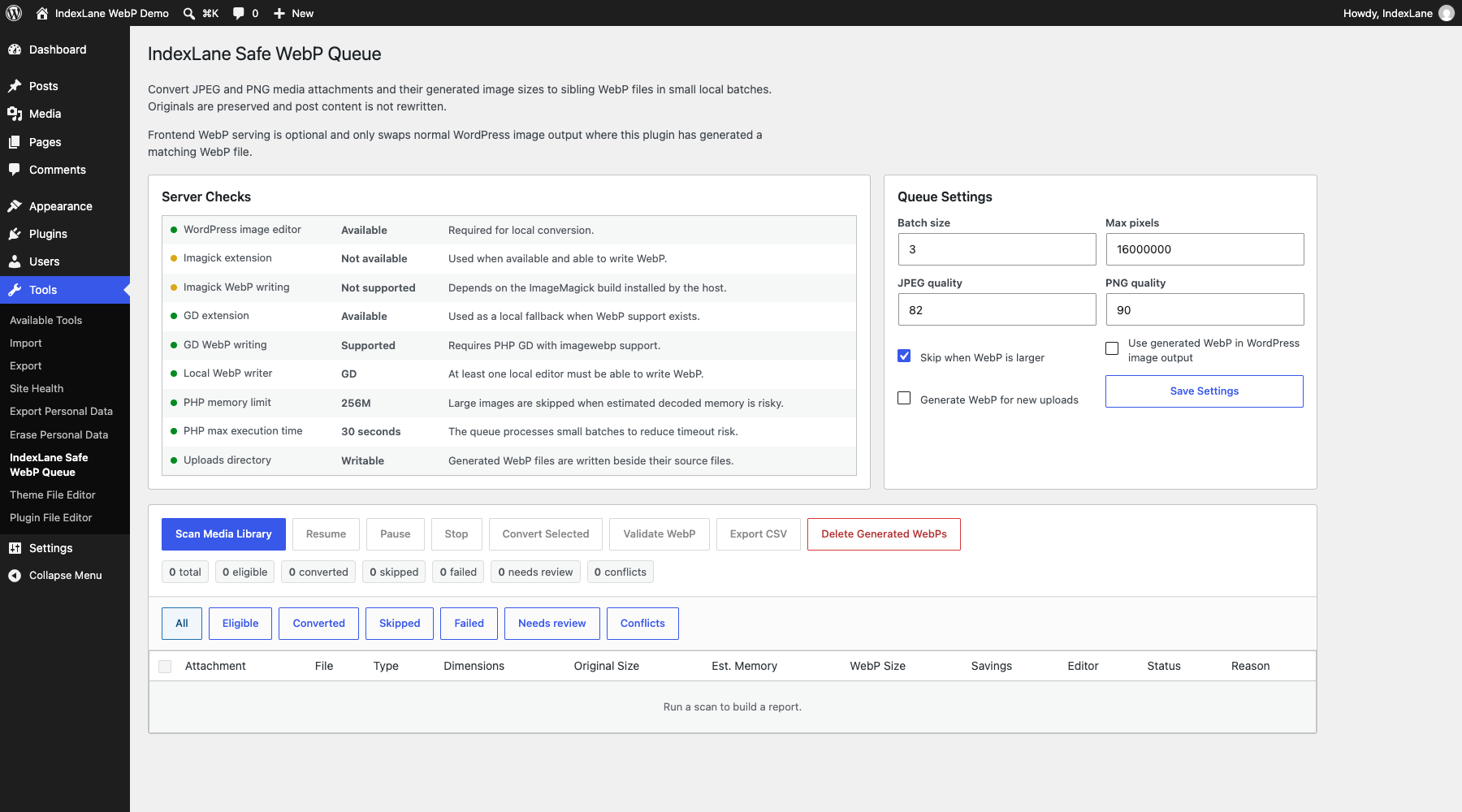
    Before you convert, the plugin checks WordPress image editors, GD or Imagick WebP support, PHP limits, and whether it can write to your uploads folder.

    You control batch size, image dimensions, JPEG and PNG quality, and whether to skip a WebP file that would be larger than the original.

    Conversion

    Convert originals and thumbnails while keeping both

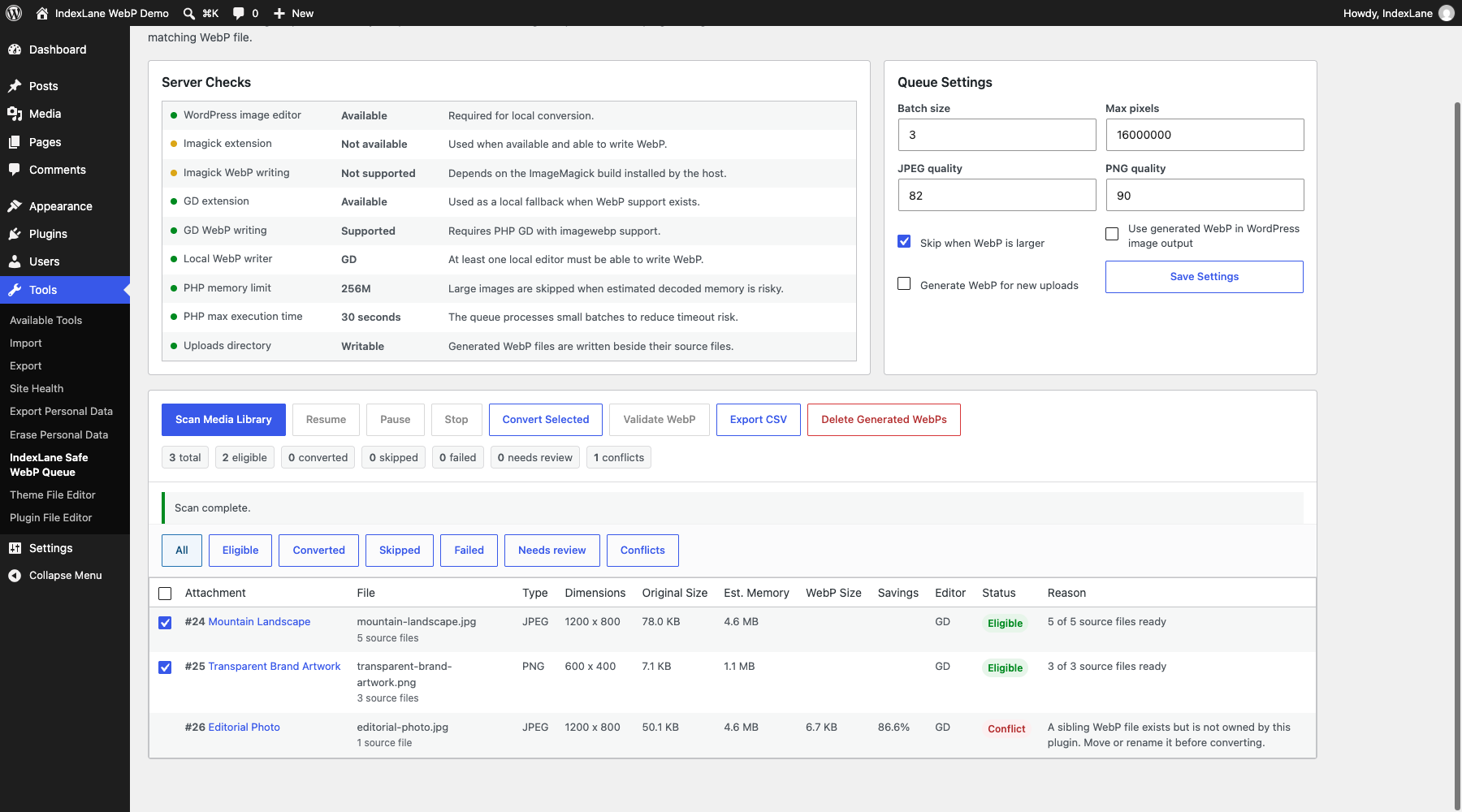
    A dry scan lists eligible JPEG and PNG images without converting them. Select the images you want; the plugin processes originals and available WordPress-generated sizes in small batches.

    Each WebP is checked before it is saved. Originals stay in place. If a WebP from another tool already exists at the destination, the plugin reports a conflict and leaves it alone.

    Delivery

    Choose when to use WebP on your website

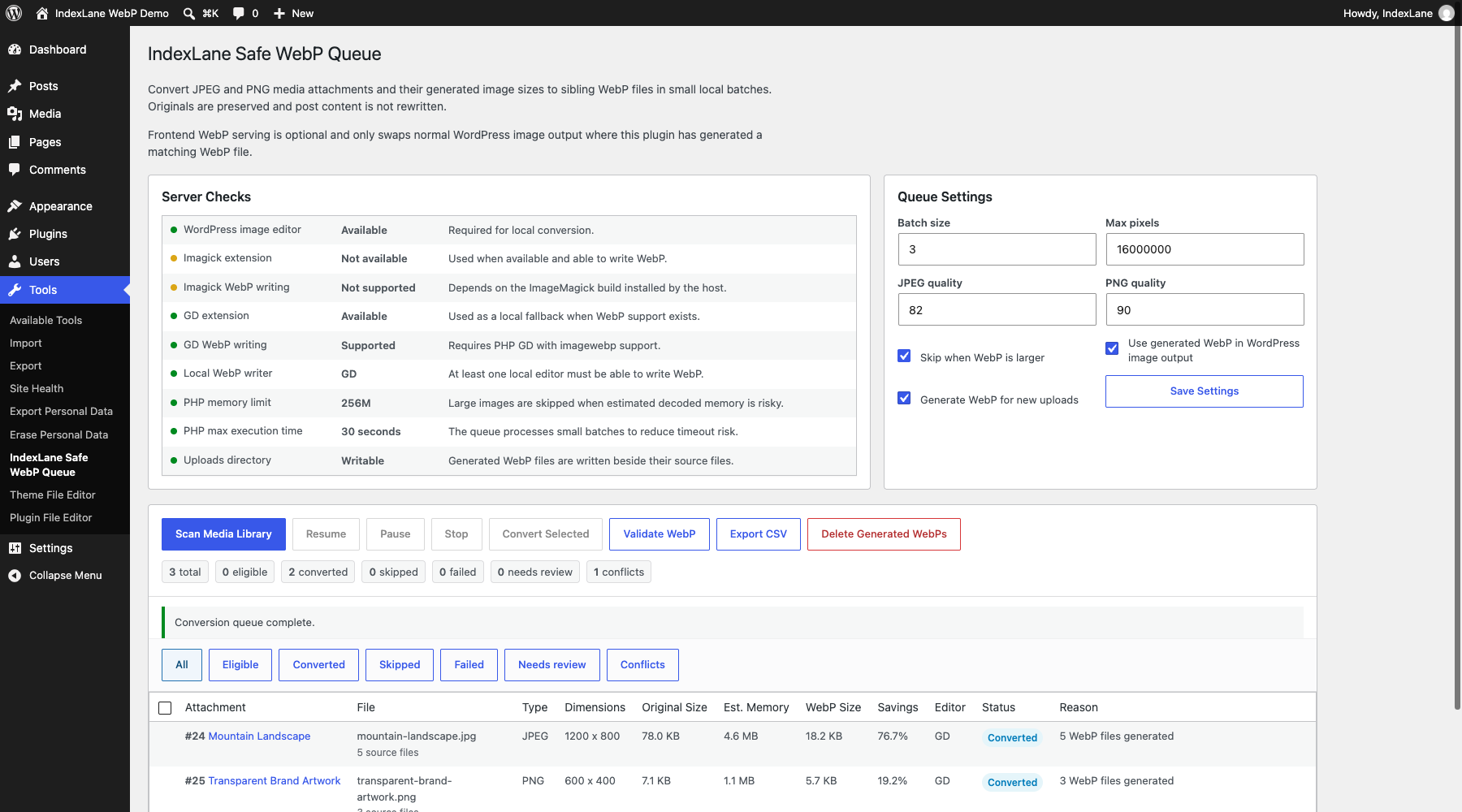
    Serving WebP and automatically converting new uploads are separate options, both off by default. WebP serving changes normal WordPress image output only when a matching generated file exists. Saved content and attachment URLs remain unchanged.

    You can check generated WebP files, export the report, or delete the files created by the plugin. Cleanup leaves originals and unrelated files in place.

    Inside version 0.1.5

    See the conversion settings and results

    Screenshots from the version 0.1.5 WordPress test environment. Select an image to enlarge it.

    Screenshot

    IndexLane Safe WebP Queue screenshots

    Scan, convert, validate

    Scan, select, convert, and check

    Check server support and scan your images before converting. Afterwards, validate or remove the WebP files created by the plugin.

    1. Check server support and choose settings

      Confirm that at least one local WordPress image editor can write WebP and that uploads are writable. Set a small batch, pixel ceiling, output quality, and whether larger WebP output should be skipped.

    2. Scan the Media Library without converting

      The dry scan lists eligible, skipped, and already converted images, plus any failures or conflicts. Each row includes image details and the reason for its result.

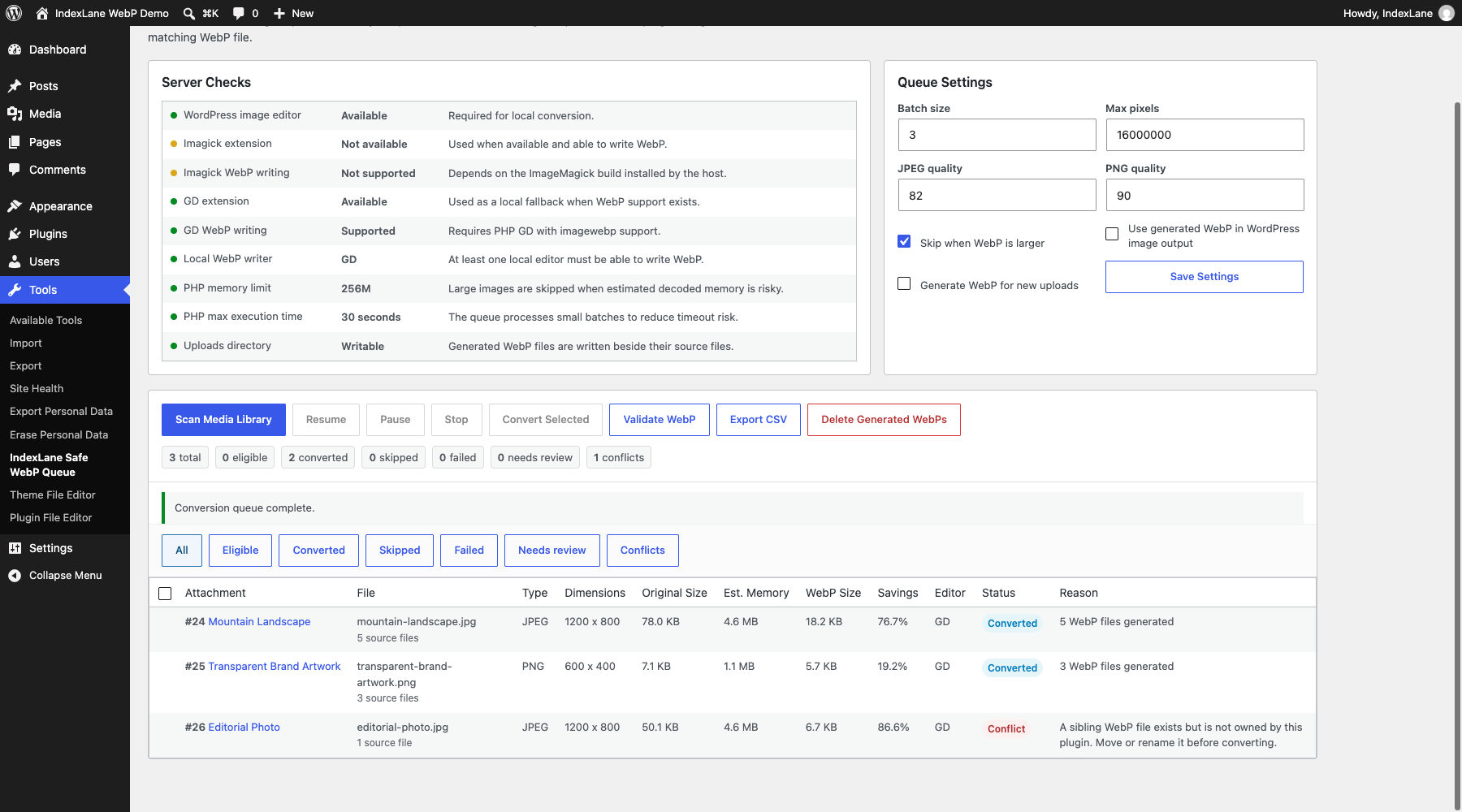
    3. Select images and start converting

      Only selected images are converted. You can pause, resume, or stop between batches; generated files are checked before being saved.

    4. Check the files before enabling WebP serving

      Review file sizes, savings, and any errors, then run Validate WebP. Download the report if you need a record before enabling WebP serving or automatic conversion of new uploads.

    Conversion results

    See which images converted and which need attention

    The report shows original and WebP sizes, savings, status, and the reason for a skip or failure. Download it as CSV when needed.

    Before conversion

    Images available to convert

    See which Media Library attachments and generated sizes are available before selecting anything for conversion.

    • Attachment, file type, dimensions, and original size
    • Estimated decoded memory and available local editor
    • Eligibility, skip, review, and conflict reasons

    After conversion

    WebP files and size savings

    The same report adds generated WebP size, observed savings, writer, status, and the number of full-size and generated files produced.

    • Converted, failed, stale, invalid, and needs-review states
    • Existing WebP files from other tools are reported and left untouched
    • Check every plugin-generated file in the current report

    Outside wp-admin

    CSV export

    Download the current results to share or keep before cleanup. Values that could be interpreted as spreadsheet formulas are escaped.

    • One row per attachment in the current report
    • Source, WebP, savings, status, and reason fields
    • No new conversion or external request during export

    Your data

    Runs inside WordPress

    Scanning, conversion, validation, serving decisions, export, and cleanup run inside WordPress. The plugin does not create an IndexLane account, upload media to an external optimizer, call a cloud conversion service, or add telemetry.

    Features

    • WordPress image editor, GD and Imagick WebP-writing support, active local writer, PHP limits, and uploads-directory access
    • JPEG and PNG Media Library attachments plus their available generated image sizes
    • Estimated decoded-memory and maximum-pixel safety limits before conversion
    • Small browser-driven batches with pause, resume, and stop controls
    • Temporary-file generation and WebP validation before plugin-owned output is published
    • Optional rejection when generated WebP is larger than its source
    • Unrelated sibling WebP conflict detection without overwrite or deletion
    • Checks for stale or invalid generated files, cleanup controls, report filters, and CSV export

    Limitations

    • Deleting or replacing original JPEG and PNG files
    • Rewriting post content, attachment URLs, or saved database image references
    • Cloud conversion, external optimization APIs, accounts, or telemetry
    • GIF, SVG, AVIF, or existing WebP conversion
    • CSS backgrounds, theme files, page-builder fields, or hardcoded image URLs

    Requires WordPress 6.0+ and PHP 7.4+ and is tested through WordPress 7.1 with GD and Imagick coverage. Conversion safety depends on the image editors and resources available on the site's server. Original JPEG and PNG files remain. Frontend WebP serving and automatic conversion for new uploads are separate options and are off by default.

    Free and open source

    Scan the Media Library before converting anything

    Install version 0.1.5 from the official WordPress Plugin Directory, then open Tools → IndexLane Safe WebP Queue in wp-admin and run the dry scan.

    Help with your website

    Need help speeding up WordPress?

    Converting images is one part of performance work. I can help check image delivery and find other causes of slow pages.